Defining REST Endpoints
Load the sakila sample database, create a REST service, and add a table as a REST endpoint, in MariaDB Shell for VS Code or with REST SQL.
After you configure a MariaDB Server for MariaDB REST Service (MRS) support, you can define REST services and their endpoints. You can do this in the graphical user interface of the MariaDB Shell for VS Code extension, or with the REST SQL extension of MariaDB Shell.
Deploying the Sakila Schema
The rest of this quickstart uses the sakila sample database. To follow along, install it:
- Get the scripts of the sakila sample database,
sakila-schema.sqlandsakila-data.sql. - In the
DATABASE CONNECTIONSview in the Primary Side Bar, right-click the DB connection entryMRS Developmentthat you created before. SelectLoad SQL Script from Disk...from the context menu and select thesakila-schema.sqlscript. - After the script has loaded, click the first lightning bolt in the toolbar to execute the full script. Watch the output until it reports that the script execution has completed and all statements were executed successfully.
- Select
Load SQL Script from Disk...again, select thesakila-data.sqlscript, and execute it the same way.
The sakila schema now appears in the DATABASE CONNECTIONS view in the Primary Side Bar as a child entry of the MRS Development connection.
Creating a REST Service
To create a REST service, right-click the MariaDB REST Service child entry of the MRS Development connection in the DATABASE CONNECTIONS view in the Primary Side Bar, and select Add REST Service....
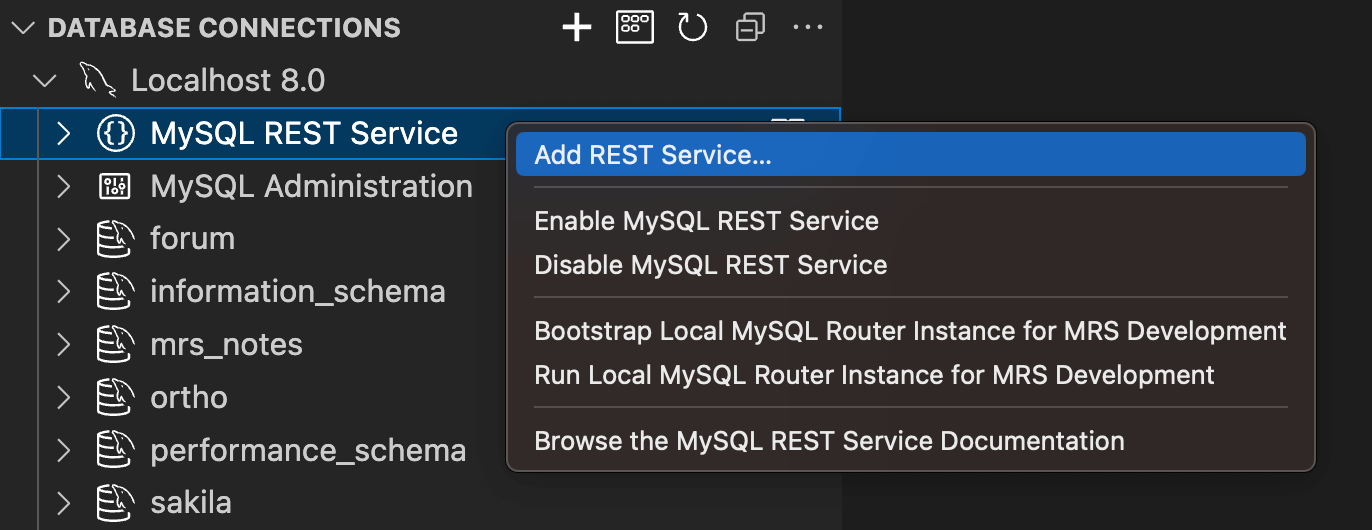
The REST service dialog opens. You can set a REST service path and a REST service name, or accept the default /myService for now.
MRS creates the REST service without publishing it, and links the REST authentication app MRS to it by default. To allow logins with MariaDB accounts as well, link the authentication app that uses MariaDB internal authentication (vendor MariaDB Internal). SHOW REST AUTH APPS lists the authentication apps.
Click OK to create the REST service.
The new REST service appears as a child of the MariaDB REST Service entry in the tree view.
Creating a REST Service with REST SQL
Instead of the graphical user interface, you can create the REST service with the CREATE REST SERVICE statement:
CREATE OR REPLACE REST SERVICE /myService
    ADD AUTH APP 'MRS';
Adding a REST Endpoint
After you create a REST service, you can add REST endpoints to it. A REST endpoint can serve a table, a view, a procedure, or a function of a database schema, or static files.
In the DATABASE CONNECTIONS view in the Primary Side Bar, expand the sakila schema entry and its Tables entry under the DB connection.
Right-click the city table and select Add Database Object to REST Service from the context menu.
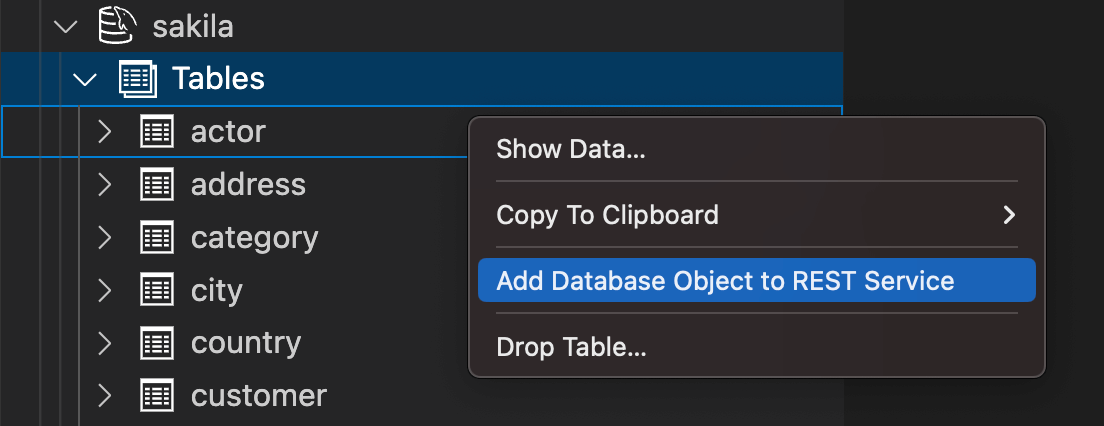
A notification in the lower-right area of the window asks the following question:
The database schema sakila has not been added to the REST service.
Do you want to add the schema now?
Before you add an object of a database schema as a REST endpoint, you must add its database schema to the REST service as a REST schema. Click Yes to add the database schema as a REST schema.
The REST object dialog opens.
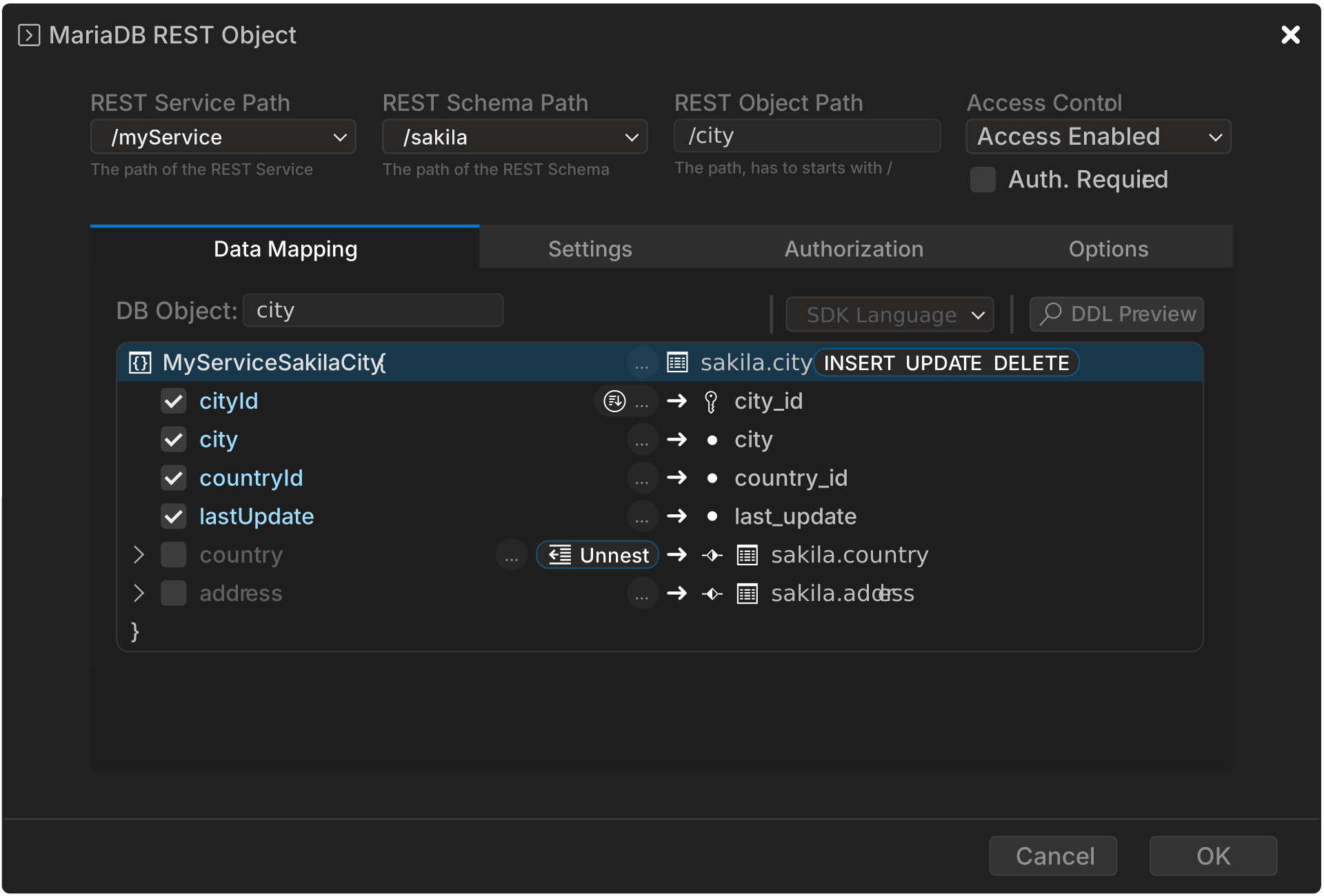
The dialog shows the full request path of the REST endpoint, which consists of the REST Service Path, the REST Schema Path, and the REST Object Path. In this case, the path is /myService/sakila/city.
For this quickstart, the REST endpoint does not require authentication. Turn off the Auth. Required option in the Access Control section in the upper-right area of the dialog.
The Data Mapping tab shows how the JSON fields map to the table columns. You can rename JSON fields or add referenced tables as nested JSON documents. See REST Data Mapping Views for details.
To allow write access through the REST endpoint, click the INSERT, UPDATE, and DELETE buttons next to the database schema name.
Click OK to create the REST endpoint.
Adding a REST Endpoint with REST SQL
You can do the same with REST SQL. First, add the database schema to the REST service as a REST schema with CREATE REST SCHEMA:
CREATE OR REPLACE REST SCHEMA /sakila ON SERVICE /myService
    FROM `sakila`;
Then add the sakila.city table with CREATE REST VIEW:
CREATE OR REPLACE REST VIEW /city ON SERVICE /myService SCHEMA /sakila
    AS `sakila`.`city` @INSERT @UPDATE @DELETE
    AUTHENTICATION NOT REQUIRED;