Setting Up the MariaDB REST Service
Prepare a MariaDB Server and VS Code for MariaDB REST Service development, configure the server for MRS, grant the administrative privileges, and start a MariaDB REST Daemon for development.
To get started with the MariaDB REST Service (MRS), you need a MariaDB Server. This guide uses a local MariaDB Server installation. If you have an existing MariaDB Server, you can use it instead.
Setting Up a Local MariaDB Server
Install MariaDB Server for your operating system as described in the MariaDB Server documentation. Alternatively, deploy a local sandbox instance with MariaDB Shell, for example sandbox.deploy(3310, {"password": "..."}) in Python mode.
After the server is installed, make sure that it is running and that you can connect to it with the MariaDB Shell for VS Code extension.
Setting Up VS Code
The recommended way to set up an MRS development environment is VS Code or VSCodium with the MariaDB Shell for VS Code extension installed.
After you install VS Code, select the Extensions icon in the Activity Bar on the left-hand side, enter MariaDB Shell, and click the Install button.
To use VSCodium, first enable the Microsoft Marketplace. Then select the Extensions icon in the Activity Bar on the left-hand side, enter MariaDB Shell, and click the Install button.
MariaDB Shell Welcome Wizard
When you launch the MariaDB Shell for VS Code extension for the first time, it shows a Welcome Wizard. Follow its steps to configure the extension.
If you run into an issue, reset the extension: open the VS Code Command Palette and select Reset MariaDB Shell for VS Code Extension, or select the corresponding context menu item of the DATABASE CONNECTIONS view in the Primary Side Bar.
Adding a DB Connection
After you configure the extension, select its icon in the VS Code Activity Bar on the left-hand side. Then click the DB Connection Overview entry in the OPEN EDITORS view in the Primary Side Bar.
On the DB Connection Overview page, click the New Connection tile in the Database Connections list. The Database Connection Configuration dialog opens.
- Choose a
Captionfor the new DB connection, for exampleMRS Development. - Set the
User Nametoroot. - Click
OKto create the DB connection.
A new DB connection tile appears in the DB Connection Overview, and a new DB connection entry appears in the DATABASE CONNECTIONS view in the Primary Side Bar.
Opening a DB Connection
Click the new tile to open the database connection. Enter the password and select whether to store it.
A new DB Notebook page opens with an SQL prompt.
Configuring MariaDB Server for MRS
You configure MRS support explicitly on a MariaDB Server before you can use it. The configuration creates the metadata schema mariadb_rest_service, which holds all information about the REST services and their endpoints.
You can configure MRS either in the MariaDB Shell for VS Code extension or with the REST SQL extension of MariaDB Shell. See Configuring MRS for details.
Configuring MRS in MariaDB Shell for VS Code
In the DATABASE CONNECTIONS view in the Primary Side Bar, right-click the DB connection entry MRS Development that you created above. Select Configure Instance for MariaDB REST Service Support from the context menu. The MariaDB REST Service dialog opens.
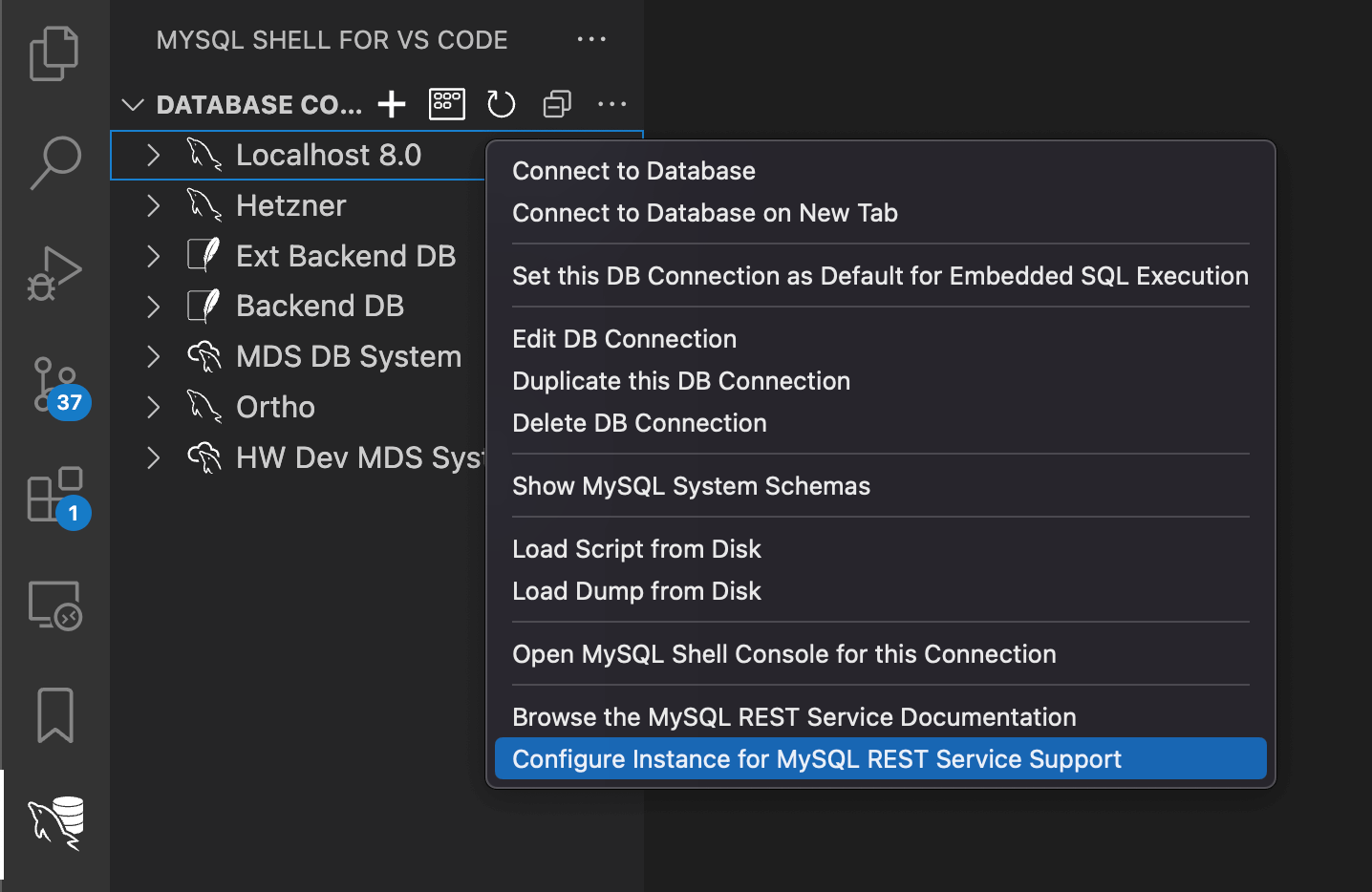
In the dialog, enter a REST User Name and a REST User Password. The password must have at least 8 characters and contain a lowercase letter, an uppercase letter, a number, and a special character. You can use this REST user later to log in to REST services.
Click OK to configure the instance for MRS support.
After the configuration, a new MariaDB REST Service child entry appears when you expand the DB connection entry in the DATABASE CONNECTIONS view in the Primary Side Bar.
Configuring MRS with REST SQL
Instead of the dialog, you can run REST SQL statements in the DB Notebook in SQL mode, or in MariaDB Shell in SQL mode. CONFIGURE REST METADATA creates the metadata schema. The REST user belongs to a REST authentication app with the vendor MRS, which CREATE REST AUTH APP creates, and CREATE REST USER adds the user to it.
CONFIGURE REST METADATA;

CREATE REST AUTH APP IF NOT EXISTS 'MRS' VENDOR MRS;
CREATE REST USER 'restUser'@'MRS' IDENTIFIED BY '********';
To check the configuration, run SHOW REST STATUS:
SHOW REST STATUS;
Assigning REST User Privileges
Use the root account for configuration only. For general administrative and development tasks, create dedicated MariaDB accounts.
DBA Account
The following statements create a database administrator account named dba with full privileges on all databases. To limit the account to some databases, change the GRANT ALL ON *.* statement accordingly.
CREATE USER 'dba'@'%' IDENTIFIED BY '********';
GRANT ALL ON *.* TO 'dba'@'%' WITH GRANT OPTION;
After you create the account, update the DB connection and replace the User Name root with dba. To do this, right-click the DB connection entry and select Edit DB Connection.
Granting REST Service Admin Privileges
To make a MariaDB account a REST service administrator, grant it the mariadb_rest_service_admin role. Make the role the account's default role, so that it is active when the account connects.
GRANT mariadb_rest_service_admin TO 'dba'@'%';
SET DEFAULT ROLE mariadb_rest_service_admin FOR 'dba'@'%';
The mariadb_rest_service_admin role exists only after you configure the server for MRS support.
MRS provides several roles to manage fine-grained access for administrators and developers. See MRS User Roles for details.
Starting a MariaDB REST Daemon for Development
When you develop REST services, run a local MariaDB REST Daemon in development mode. It lets you test the REST services you are working on locally, without publishing them on the production systems. See REST Service Lifecycle Management for details.
To start a local MariaDB REST Daemon in development mode, right-click the MariaDB REST Service entry of the DB connection and select the item that starts a local MariaDB REST Daemon from the context menu.
A terminal opens and shows the log output of the MariaDB REST Daemon in real time. This log output helps you debug REST endpoints.
To check that the daemon has registered itself in the metadata, run SHOW REST DAEMONS:
SHOW REST DAEMONS;
The installation and bootstrap of the MariaDB REST Daemon are documented with its release.
To set up a MariaDB REST Daemon that keeps running for a server, rather than one in development mode, use the MCP server of MariaDB Shell: its rest.configure_restd tool installs the daemon if needed, runs its setup, and starts it. The MariaDB extension for Visual Studio Code does the same with the Configure MariaDB REST Service option of the New Sandbox dialog and the Set Up MariaDB REST Daemon… item of a connection's context menu. See REST Daemon Tools.
Enabling the Microsoft Marketplace on VSCodium
To use extensions from the Microsoft Marketplace in VSCodium, create a configuration file:
-
Open an editor of your choice and paste the following content:
{"nameShort": "Visual Studio Code","nameLong": "Visual Studio Code","extensionsGallery": {"serviceUrl": "https://marketplace.visualstudio.com/_apis/public/gallery","cacheUrl": "https://vscode.blob.core.windows.net/gallery/index","itemUrl": "https://marketplace.visualstudio.com/items"}} -
Save the file at the following location:
- macOS:
$HOME/Library/Application Support/VSCodium/product.json - Windows:
$HOME\AppData\Roaming\VSCodium\product.json
- macOS:
-
Restart VSCodium.
To return to the default marketplace of VSCodium, delete the product.json file and restart VSCodium.