Working Interactively with REST Services
Test REST data mapping views and REST procedures right after you create or change them, with the MRS TypeScript client API in a DB Notebook of MariaDB Shell for VS Code.
MariaDB Shell for VS Code features a live, interactive workflow for designing REST services of the MariaDB REST Service (MRS). You test new or changed REST data mapping views and REST procedures right away, with the MRS TypeScript client API in a DB Notebook.
The interactive workflow needs a MariaDB REST Daemon instance that serves the REST services in development. See Running the MariaDB REST Daemon and Development Setup.
Switching to TypeScript Mode
When you open a database connection in MariaDB Shell for VS Code, the DB Notebook opens. If it is in SQL mode, switch it to TypeScript mode with \ts.

Choosing a REST Service
To work with a REST service in a DB Notebook, set it as the current REST service. This is similar to the SQL statement USE db_name, which sets the current database schema.
To get information about the current REST service, call the mrs.getStatus() function of the global mrs object. It prints the MRS status. The current REST service has the property isCurrent set to true.
ts> mrs.getStatus();
{
    "configured": true,
    "info": "2 REST services available.",
    "services": [
        {
            "serviceName": "myService",
            "url": "https://localhost:8443/myService",
            "isCurrent": true
        },
        {
            "serviceName": "myPublicService",
            "url": "https://localhost:8443/myPublicService",
            "isCurrent": false
        }
    ]
}
Once a current REST service is set, the MRS TypeScript client API for it is generated on the fly and made available to the TypeScript code blocks of the DB Notebook.
You access the current REST service through a global variable with the name that mrs.getStatus() lists in the serviceName property. The serviceName is derived from the URL context root of the REST service, converted to camel case without slashes. For example, a REST service with the URL context root /myService is accessible as myService.
ts> myService.url;
https://localhost:8443/myService
You set the current REST service in a DB Notebook with TypeScript, or in the VS Code user interface.
Setting the Current REST Service with TypeScript
The global mrs object has a property for each available REST service, named after its serviceName, as described in the previous section.
To make a REST service the current one, call its setAsCurrent() function. VS Code auto-completion helps you select the serviceName.
ts> mrs.myPublicService.setAsCurrent();
The new current REST service is available only after the whole TypeScript code block has run, with Cmd+Return on macOS or Ctrl+Return on Linux and Windows. The change goes through an asynchronous message pipeline that can't be awaited, so the methods of the new current REST service don't work in the same code block that changes it.
Setting the Current REST Service in VS Code
In the DATABASE CONNECTIONS view of VS Code's primary sidebar, expand the DB connection and its MariaDB REST Service tree item, right-click the REST service, and select Set as Current REST Service.
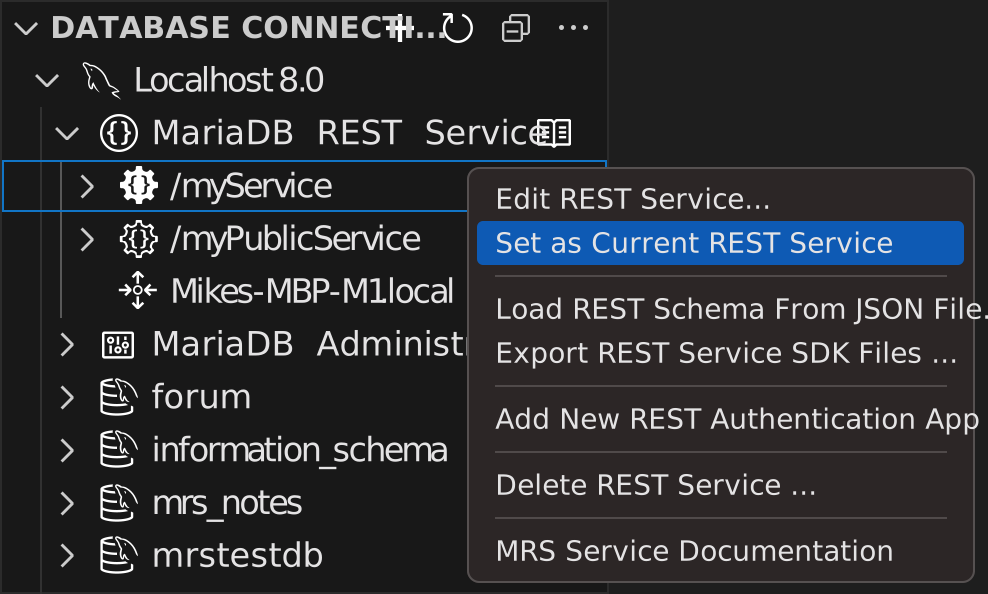
The current REST service has a solid, filled icon. All other REST services have an outlined icon.
Authentication
If REST objects require authentication and the REST service has a REST authentication app, call the authenticate() function of the REST service's client API object. It shows a login dialog, in which you enter the credentials of a user account.
ts> myService.authenticate();
The authenticate() function works only with the built-in MRS authentication vendor. Use this vendor for the REST authentication app.
Querying a REST Object
The following examples use a REST view on the table sakila.city.
ts> myService.sakila.city.findFirst();
{
   "city": "A Corua (La Corua)",
   "cityId": 1,
   "countryId": 87,
   "lastUpdate": "2006-02-15 04:45:25.000000",
}
You can select fields and add a conditional where clause. See the MRS client SDK for more information.
ts> myService.sakila.city.find({select: ["city", "cityId"], where: {city: {$like: "NE%"}}});
[
    {
        "city": "Newcastle",
        "cityId": 364,
    },
    {
        "city": "Nezahualcyotl",
        "cityId": 365,
    }
]
To edit a REST object in the REST object dialog, call its edit() function. The function is available in DB Notebooks only.
ts> myService.sakila.city.edit()